

 The Voice Agent Builder is a visual, graph-based editor for designing what your voice agent says and does during a call. Instead of writing one giant prompt, you break the conversation into nodes (stages of the conversation) connected by pathways (the routes the LLM can take between stages, based on how the conversation is going).
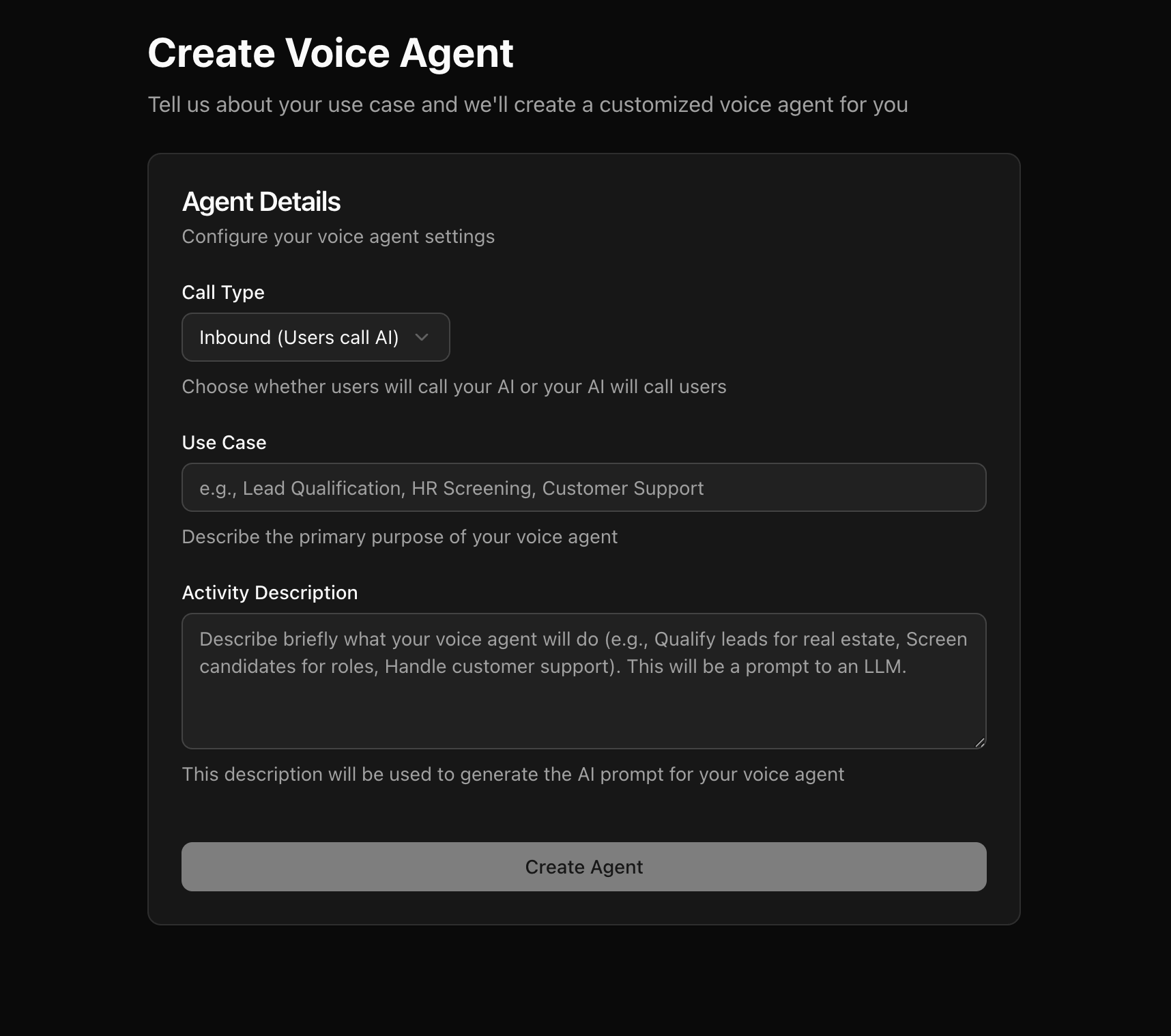
You can create a new agent from the dashboard. Describe whether you need an “Inbound” or “Outbound” agent and your use case — this is sent to an LLM to generate a starting workflow with default prompts and pathways, which you can then edit.
The Voice Agent Builder is a visual, graph-based editor for designing what your voice agent says and does during a call. Instead of writing one giant prompt, you break the conversation into nodes (stages of the conversation) connected by pathways (the routes the LLM can take between stages, based on how the conversation is going).
You can create a new agent from the dashboard. Describe whether you need an “Inbound” or “Outbound” agent and your use case — this is sent to an LLM to generate a starting workflow with default prompts and pathways, which you can then edit.
The graph model
A workflow is a directed graph:- Nodes represent a stage of the conversation or an action (e.g. greet the caller, collect an address, transfer the call).
- Pathways (edges) connect nodes and represent the routes the LLM can take depending on what the caller says. The LLM decides at runtime which pathway to follow.
Node types
Beyond nodes, you can extend an agent with:
- Tools — let the LLM call external APIs, transfer calls, or invoke MCP servers mid-conversation.
- Knowledge Base — attach documents the agent can reference during a call.
- Pre-Call Data Fetch — enrich context with an HTTP call before the agent starts speaking.
- Pre-recorded Audio — mix in real recordings alongside LLM-generated speech.
- Template Variables — reference
initial_contextandgathered_contextvalues in prompts and payloads.
Where to start
- New to EESI? Follow Editing a Workflow to learn the fundamentals of nodes and pathways.
- Want to test immediately? Use a Web Call from the agent editor — no telephony setup required.
- Ready to go live? Configure a telephony provider and add an API Trigger or set up inbound routing.
- Need the call to hit your systems? Add a Webhook node to sync results to your CRM or automation tool.
- Want to embed the agent on a website? See Add to Website.